


Cellular Tower - Signal Finder
4.4345.00 Reviews
App Specs
- Version
- 2.2.0
- Updated On
- License
- Free
- Downloads
- 500,000+
- Developer
- Go Dreams
- Categories
- Maps & Navigation
- Platform
- Android
Screenshots
 Analysis by AppCompare
I see Cellular Tower - Signal Finder as a practical tool for investigating weak mobile reception, not a magic fix for it. Its appeal is straightforward: it helps you look at nearby cellular towers and signal information so you can make a more informed choice about where to stand or whether a reception problem is tied to your surroundings. That can be genuinely useful, as long as you treat the map as guidance rather than a promise that moving a few steps will restore service.
What it can help you figure out
When reception drops, the usual response is to retry a call, toggle settings, or walk around without knowing whether any direction is better. A tower-focused map gives that wandering a purpose. You can check what is nearby, compare the displayed information with the signal your phone is receiving, and test a different spot instead of relying only on guesswork. I find that investigative role more convincing than expecting the app to improve the network itself.
A useful way to try it is to establish a baseline before moving. Note the signal reading where you are, check the map, then move to a nearby open area and compare again. Make one change at a time: going outside, changing floors, or stepping away from a thick wall can all affect reception. That simple routine helps distinguish a location problem from a temporary fluctuation, although it cannot guarantee a stronger connection.
Where a tower map earns its place
For a realistic example, imagine arriving at a rented cabin and finding that calls are unreliable indoors. Rather than repeatedly pacing from room to room, you can use the tower view to get a sense of the surrounding network and then test reception near a window, outside the building, or at a safe nearby open spot. The app is most useful when you combine its information with what your phone actually reports; a mapped tower is a clue, not proof that its signal will reach every room.
That distinction matters because distance alone does not tell the whole story. Buildings, terrain, and the direction a phone is facing can all influence what you experience, while the map may make a nearby tower look more decisive than it is. I would use the displayed strength and distance to choose sensible places to test, not as a guarantee of coverage or as a reason to take an unsafe detour.
How it differs from ordinary navigation tools
Compared with a general maps app, this one focuses on mobile-network context rather than helping you get from one destination to another. A regular navigation app is the better choice for route planning, traffic, and turn-by-turn directions. A carrier coverage map is more appropriate when you are deciding which provider may serve an area, while a phone’s built-in signal indicator is faster for checking whether your connection is weak right now. The tower view is useful in the gap between those options: it can help you investigate a local reception issue, but it is not a substitute for navigation or a definitive coverage test.
That makes it a niche companion rather than an app I would keep open all day. If you often travel through unfamiliar areas, work in buildings with patchy reception, or want to understand why one corner of a property performs better than another, the extra network detail may justify having it installed. If your signal is consistently fine and you never need to diagnose it, the phone’s status bar will probably do the job.
Worth Reading Before You Choose

EA SPORTS FC Mobile 26 Is a Bigger Football Game, but It Takes Time

Flipboard Shows What News Apps Must Do Beyond the Feed

Switching to Android Auto Means Rethinking Your Driving Routine

Google Calendar Makes a Crowded Week Easier to Manage

Ludo King Makes the Most of the Minutes Between Plans

Baby Panda World Brings Quick Play to Modern Phones, but Its Game Library Feels Busy
Who should be cautious
I would not choose this app expecting it to amplify a carrier’s network, repair a dead zone, or make an unsupported area usable. Its role is to show information that can help you investigate; the actual connection still depends on your phone, network, and location. If you need dependable service for work or emergencies, use a suitable carrier plan and reliable communication options rather than relying on a tower map to solve coverage limitations.
There is also a practical difference between checking reception while stationary and using a map while moving. For a quick test, stop somewhere safe, review the display, and then compare readings from another safe spot. Trying to interpret a screen while driving or walking through an unfamiliar area is a poor trade-off. Treating the app as a tool for deliberate checks makes its information easier to use and avoids confusing a changing reading with a lasting improvement.
Who will get the most from it
The strongest fit is someone curious about mobile coverage and willing to test what the map suggests. That might be a traveler choosing where to make a call, a person comparing reception in different parts of a home, or someone who regularly visits rural locations and wants more context than a single bar provides. It is less compelling for users who simply need directions, want guaranteed indoor coverage, or expect an app alone to change network performance.
For a home check, I would compare the same places at roughly the same time and keep the phone in a similar position. That will not turn the app into a formal measurement instrument, but it can make casual comparisons less misleading. If you are evaluating a provider before switching, use the app as one input and check the provider’s own coverage information as well; a nearby tower display cannot tell you everything about service quality or plan suitability.
Finding the Signal Sweet Spot
Picture this: you’re in the middle of nowhere, or maybe just your basement, and you need that sweet cellular signal. That’s where Cellular Tower - Signal Finder comes into play. The app’s primary mission is to help you locate the nearest cell towers, so you can position yourself accordingly for the best reception. It’s like having your own personal network scout right in your pocket.
Interface and Usability
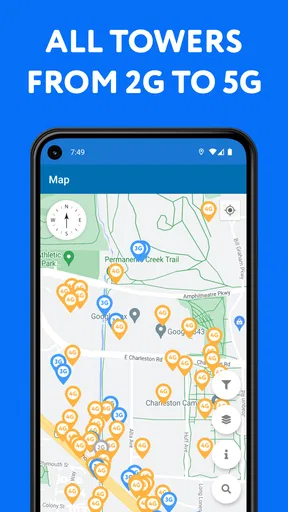
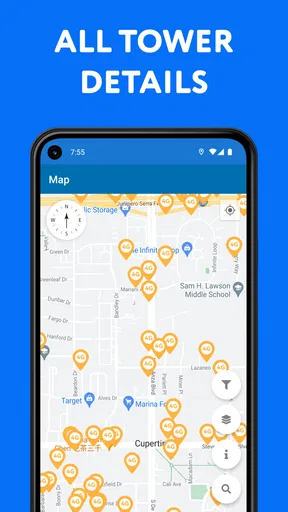
First off, let's talk about the interface. It’s sleek and straightforward, which means you don’t need to be a tech wizard to navigate it. When you open the app, you’re greeted with a map view that shows your current location along with nearby cellular towers. It’s super intuitive. You can even switch between different map views to suit your preference, whether it be satellite or terrain.
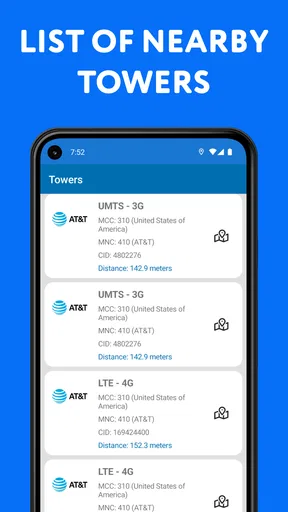
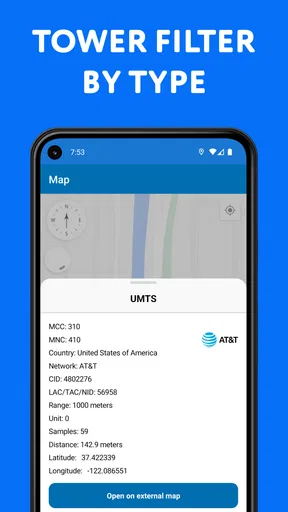
The app also provides detailed information about each tower, such as the signal strength and the distance from your location. This is particularly handy when you’re trying to determine which direction to head in to catch a better signal.
How It Works
So how does it all work? Once you allow the app access to your location, it pulls up the relevant data using your phone’s GPS. It’s quick and doesn’t hog your device’s resources, which is a huge plus. I’ve used other apps that slow my phone down to a crawl, but thankfully, that’s not the case here.
The app also supports multiple network providers. So whether you’re on AT&T, Verizon, or any other carrier, Cellular Tower - Signal Finder has got you covered. You can easily toggle between networks if needed, which is a nifty feature for those of us who use more than one SIM card.
Features to Love
- Real-time updates: The app provides real-time updates on signal strength, which is crucial when you’re on the move.
- Signal Strength Meter: You can visually see the current signal strength with a built-in meter, making it easier to find that sweet spot.
- Customizable Alerts: Set up alerts to notify you when you enter a low-signal area. This is perfect for travelers or those who frequently find themselves off the beaten path.
Room for Improvement
While the app is fantastic, there are a few areas where it could improve. For instance, a feature that tracks historical signal strength data would be a great addition, helping users identify trends over time. Additionally, a user-friendly guide or FAQ section within the app could assist newcomers in getting the most out of its features.
Final Thoughts
All in all, Cellular Tower - Signal Finder is a must-have for anyone who’s ever struggled with poor signal reception. It’s easy to use, provides valuable information, and could genuinely save you from the frustration of dropped calls. Whether you’re navigating urban jungles or exploring remote trails, this app has your back. So go ahead, download it and give it a whirl. You might just wonder how you ever lived without it!
Practical expectations before installing
Cellular Tower - Signal Finder is a free Maps & Navigation app from Go Dreams, with optional in-app purchases ranging from $2.99 to $29.99 per item. It is rated for Everyone and has an average rating of 4.3 from around 16 thousand ratings, with over 500 thousand installs. The current version is 2.0.10, and it requires Android 8.0 or later. Those details make it accessible to many Android users, but I would still think of the purchase options as optional extras rather than a reason to expect a particular improvement in reception.
One question people often have is whether it is worth opening when a call has already failed. My answer is yes, if you want to investigate the location, but not if you need an immediate fix. Check the map when you can pause, look for a safe place to test, and compare the signal meter after moving. If the reading remains poor across nearby spots, the likely useful conclusion may simply be that the area is difficult for your current connection.
Small habits that make the results more useful
For a more meaningful comparison, keep the test conditions consistent. Try the same phone in two or three places, avoid changing several things at once, and give the display a moment to settle before drawing a conclusion. If you are comparing rooms, test near a window and then farther inside; if you are outdoors, avoid treating a brief fluctuation as evidence that one route is reliably better. This is a modest workflow, but it reduces the chance of mistaking normal signal variation for a dependable pattern.
Another useful trade-off is to decide what question you want answered before opening the map. “Which nearby place gives me a better chance of making this call?” is a practical question. “Will this tower guarantee fast data everywhere around it?” is not something a map view can settle. Keeping the goal narrow helps you use the tower and strength information without giving it more authority than it deserves.
The app is also more valuable when you are planning a test than when you are trying to navigate at the same time. If you are on a trail, for example, check reception from a safe stopping point and keep your route decisions grounded in an ordinary navigation tool. Network information can be helpful context, but it should not determine whether you leave a marked path or enter unfamiliar property in search of a better bar.
How I would decide whether to keep it
I would keep it if I regularly troubleshoot weak reception, visit places where coverage varies, or want a more informed way to compare nearby spots. I would skip it if my only need is turn-by-turn guidance, if I expect it to boost transmission, or if I need a firm guarantee that a building or remote location will have service. For those cases, navigation software, carrier coverage information, or a direct conversation with the provider is a better match.
My overall view is positive but deliberately measured: the app offers a focused way to inspect cellular surroundings, and that focus is its main strength. It does not replace the phone’s signal indicator, a provider’s coverage information, or sound judgment about where it is safe to go. Used as a diagnostic companion rather than a rescue button, it can make weak-signal situations less random and help you decide what to try next.
Pros
- User-friendly interface for easy navigation.
- Accurate signal strength readings.
- Compact size with minimal storage use.
- Provides detailed tower maps.
- Fast updates for real-time data.
Cons
- Ads can be intrusive at times.
- Limited features in free version.
- Requires constant internet connection.
- Not available offline.
- Battery consumption can be high.
FAQs for Cellular Tower - Signal Finder
What is Cellular Tower - Signal Finder used for?
Cellular Tower - Signal Finder is designed to help users locate nearby cell towers and improve their mobile signal strength. By providing a detailed map and real-time data, it assists in finding the best spots for optimal connectivity. It's especially useful for those in areas with fluctuating signal quality.
How accurate is the signal strength information provided by the app?
The app uses a combination of GPS data and network information to display signal strength. While it provides a reliable indication of signal quality, factors such as weather, terrain, and network congestion can affect accuracy. Users should consider it as a helpful guide rather than a precise measurement.
Does Cellular Tower - Signal Finder work with all mobile carriers?
Yes, the app is compatible with most major mobile carriers worldwide. It accesses network information from your device, allowing it to display relevant data regardless of your network provider. However, the availability of detailed information may vary depending on the carrier’s data sharing policies.
Is the app available for both Android and iOS devices?
Cellular Tower - Signal Finder is available for both Android and iOS platforms. Users can download it from the Google Play Store for Android devices and the Apple App Store for iOS devices. Ensure your device meets the minimum software requirements for optimal performance.
Are there any privacy concerns with using this app?
The app requires location access to function effectively, which may raise privacy concerns for some users. However, it does not collect personal data or track users beyond necessary functionality. Always review the app’s privacy policy to understand how your data is managed and protected.


